
TranscribeGo is no longer just a transcription tool — we just launched Write, a new section that lets you create, rewrite, and optimize articles with AI. Import any text from a PDF, Word document, or URL, then use the AI assistant to rewrite it in your own words, summarize long content into digestible pieces, or optimize it for search engines. Whether you're a journalist reshaping interview notes into a publishable story, a student turning a 50-page paper into a study summary, or a content creator optimizing posts for SEO — Write puts a full AI writing workspace right inside TranscribeGo.
Why Write? Because Transcription Was Only Half the Story
TranscribeGo has always been about turning spoken words into text. But we noticed something: many of our users didn't stop at the transcript. Journalists were copying transcripts into separate tools to draft articles. Students were pasting lecture transcriptions into AI chatbots to get summaries. Content creators were bouncing between three apps to go from transcript to published post.
86% of students already use AI tools in their studies, and the AI writing assistant market is growing at over 17% annually. The demand is there — people need help not just capturing text, but working with it. Write brings that capability directly into TranscribeGo, so you can go from raw input to finished article without leaving the platform.
How Write Works
Write lives alongside Transcribe in your TranscribeGo dashboard. Where the left side of the app has always been about transcription, now you'll also find Write — your AI-powered article workspace.
Start From Scratch or Import Content
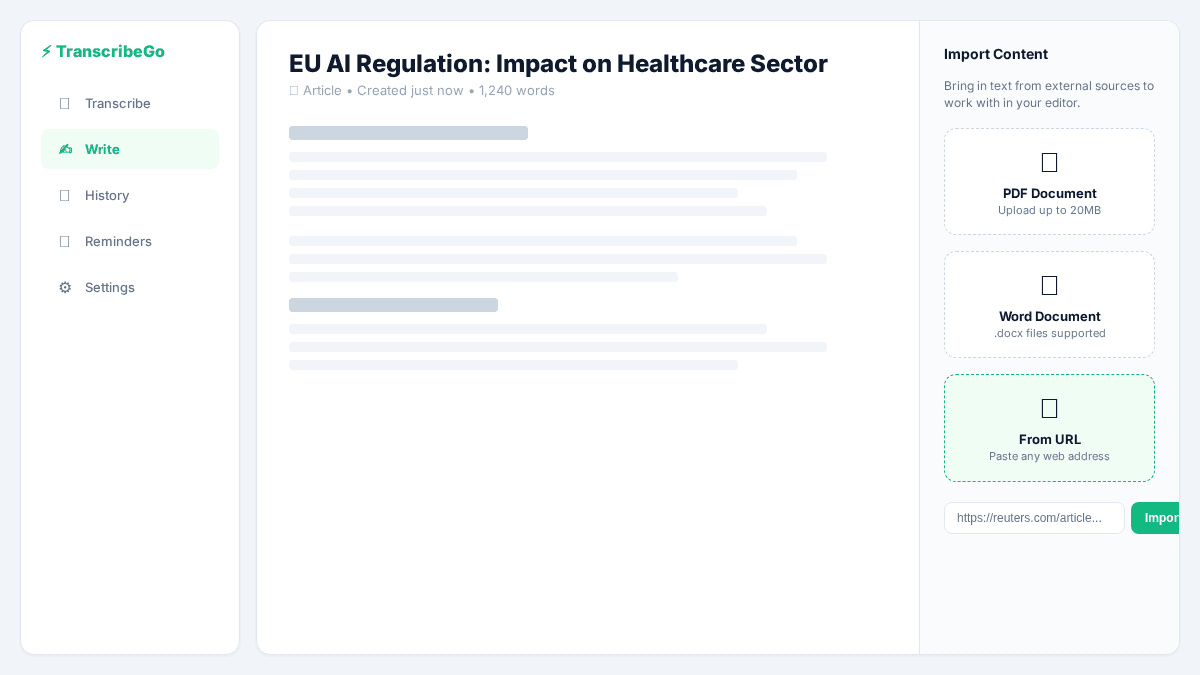
You can create a blank article and start writing, or import content from three sources:
PDF — Upload any PDF document. TranscribeGo extracts the text and drops it into your editor, ready to work with. Research papers, reports, ebooks, legal documents — anything in PDF form becomes editable text in seconds.
Word Document — Import .docx files directly. Your formatted text is extracted and placed in the editor. Perfect for working with drafts, notes, or documents shared by colleagues.
URL — Paste any web address and TranscribeGo pulls the article content into your workspace. Found a news story you want to analyze, a competitor's blog post you want to study, or a reference article for your research? Import it with one click.
The AI Assistant: Your Writing Partner
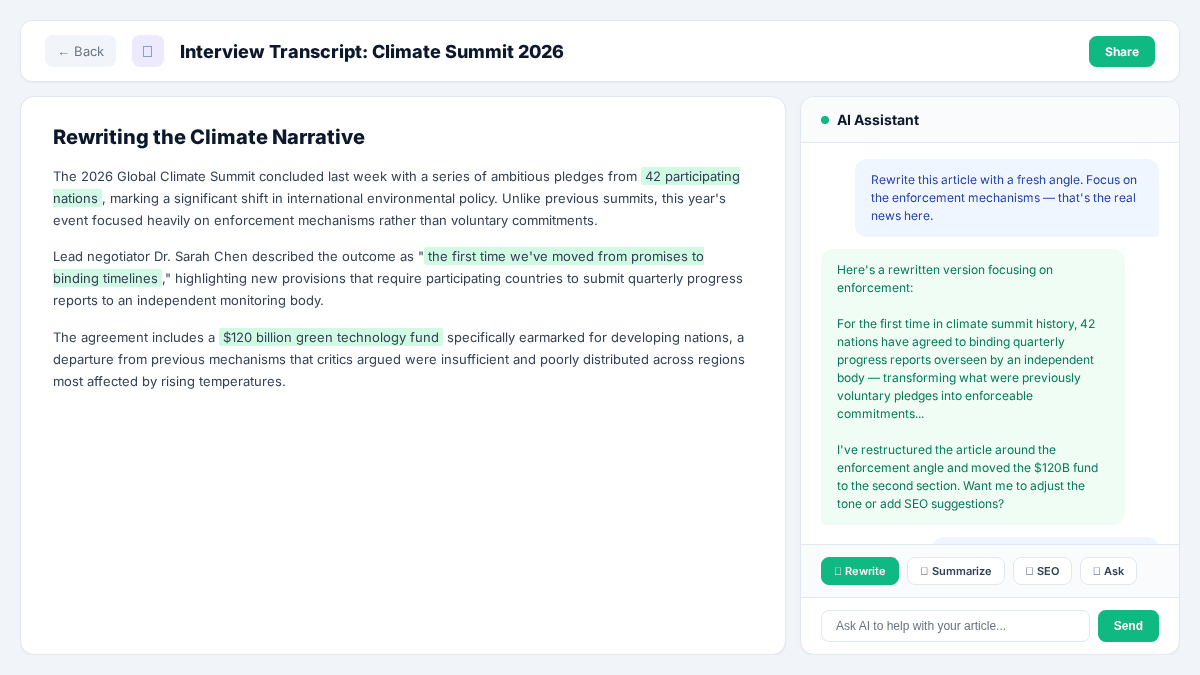
The right side of the Write workspace is where the magic happens. An AI assistant panel sits alongside your editor, ready to help you transform your content. Depending on what you need, the AI can:
Rewrite articles. Paste or import a news story, interview transcript, or any source material, and ask the AI to rewrite it completely — new words, new structure, same information. This is invaluable for journalists who need to produce original reporting from wire stories, press releases, or their own interview notes. The AI rewrites the content while preserving the key facts, giving you a fresh draft to polish with your own voice.
Summarize long texts. Have a 30-page research paper? A two-hour lecture transcript? A lengthy legal document? Ask the AI to summarize it into the key points. You choose the depth — a quick paragraph overview, a structured summary with sections, or a detailed breakdown of every major argument. Students use this to create study materials from dense academic texts in minutes instead of hours.
Ask questions about your content. The AI doesn't just process your text — it understands it. Ask questions like "What are the three main arguments in this paper?", "What data sources does this report cite?", or "What's the conclusion of this article?" and get precise answers drawn from your document. It's like having a research assistant who's already read everything.
Optimize for SEO. Ask the AI to analyze your article for search engine optimization. It suggests improvements for headlines, meta descriptions, keyword density, structure, and readability — helping you write content that ranks. Content creators and marketers use this to ensure every article they publish has the best chance of being found.
Who Is Write For?
Journalists and Newsrooms
The news cycle doesn't wait. Journalists need to go from raw notes to published article fast. With Write, you can:
Import your interview transcript (already generated by TranscribeGo), a press release PDF, or a wire story URL. Then ask the AI to rewrite it into an original article, restructuring the narrative and finding a fresh angle. Edit the draft in the built-in editor, adding your perspective and style. The result is original reporting, produced faster.
AI tools can reduce writing time by up to 65% while maintaining quality — and Write puts that efficiency directly into the same platform where you transcribe your interviews.
Students and Researchers
Studying shouldn't mean drowning in text. With Write, students can:
Import a long research paper, textbook chapter, or lecture transcript. Ask the AI to summarize the key arguments, extract the methodology, or explain complex concepts in simpler language. Then ask follow-up questions to deepen understanding. The AI remembers the full context of your document, so you can have a conversation about it.
This turns TranscribeGo into a complete study tool: transcribe the lecture, then open Write to summarize and analyze the transcript. Everything in one place.
Content Creators and Marketers
Every article you publish needs to rank. With Write, you can:
Draft your content in the editor, import reference material from competing articles (via URL), and ask the AI to help you optimize for SEO — improving headlines, suggesting keyword placements, tightening structure, and enhancing readability. Organizations using AI writing tools report 61% higher productivity and 430% faster content creation compared to manual workflows.
Anyone Who Works With Text
Write isn't limited to specific professions. Lawyers can import contracts and ask for plain-language summaries. HR teams can import policy documents and rewrite them for clarity. Translators can import source documents alongside their TranscribeGo translations. If you work with text, Write makes that work faster and smarter.
Write in Your History
Every article you create in Write appears in your TranscribeGo history — the same place where your transcriptions live. We've added a segment selector at the top of the history page: switch between Transcriptions (your audio and video transcripts) and Articles (everything you've created in Write).
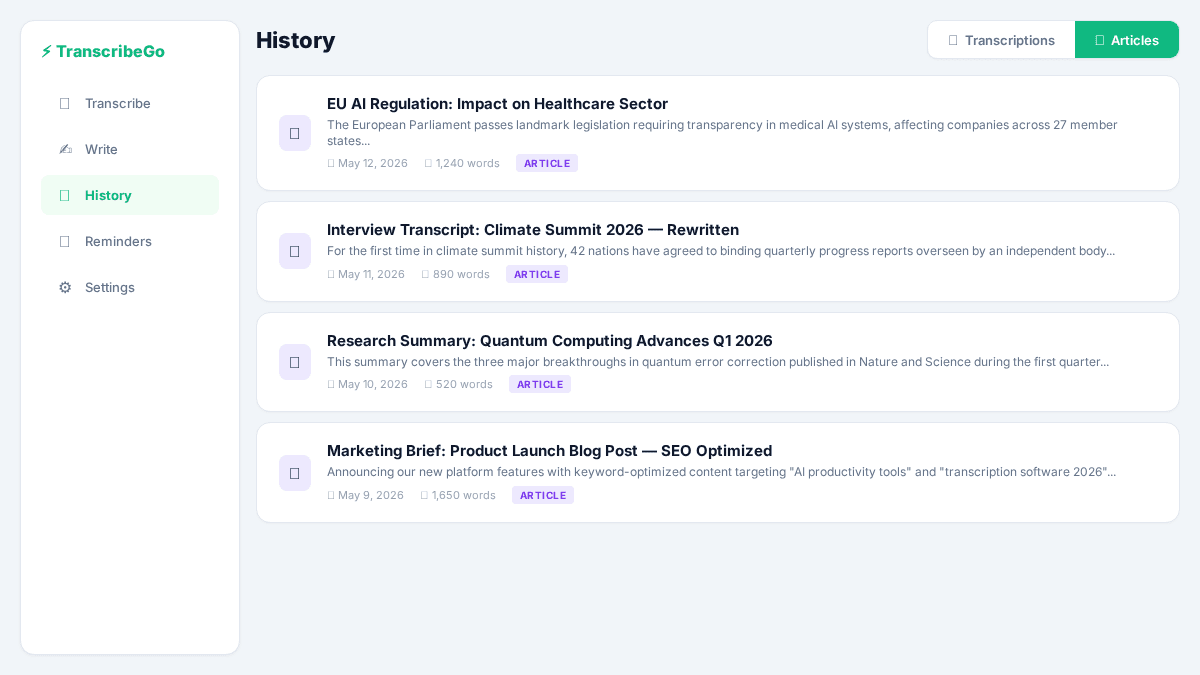
Articles are searchable, organized by date, and always accessible from your dashboard. Just like transcriptions, they're part of your permanent TranscribeGo workspace.
From Transcribe to Write: A Complete Workflow
Here's what makes this powerful: TranscribeGo now covers the entire content pipeline.
Step 1: Capture. Transcribe an interview, lecture, podcast, or meeting via web, WhatsApp, or Telegram. Get a transcript and AI summary.
Step 2: Create. Open Write. Import your transcript or any other source material. Use the AI to rewrite, summarize, restructure, or optimize.
Step 3: Publish. Your article is ready. Export it, copy it to your CMS, or keep it in your TranscribeGo dashboard for reference.
Step 4: Remember. Set a reminder in WhatsApp or Telegram: "Remind me to review the article draft tomorrow at 10am." TranscribeGo handles the follow-up.
No more jumping between transcription tools, AI chatbots, writing apps, and calendar reminders. It's all one platform.
Getting Started
- Log in at transcribego.com or create a free account.
- Click Write in the sidebar navigation.
- Create a new article or import content from PDF, Word, or URL.
- Use the AI assistant to rewrite, summarize, ask questions, or optimize for SEO.
- Find your articles in History, under the Articles tab.
Write is available now for all TranscribeGo users. Start with the free tier and upgrade as your writing needs grow.
Try TranscribeGo Free
10 free minutes. No credit card required.
Frequently Asked Questions
What formats can I import into Write?▾
Write supports three import formats: PDF documents (up to 20MB), Word documents (.docx, up to 20MB), and any URL. When you import a URL, TranscribeGo extracts the article content from the web page automatically. You can also start with a blank document and write from scratch.
Can the AI rewrite an entire article in new words?▾
Yes. The AI can take any source material — a news story, press release, transcript, or research paper — and rewrite it completely with new wording and structure while preserving the key facts and information. This gives you a fresh draft to edit and personalize with your own voice and perspective.
How does the AI summarization work for students?▾
Import any long text (research paper, textbook chapter, lecture transcript) and ask the AI to summarize it. You can request different levels of detail — from a quick overview paragraph to a structured breakdown of every major section. You can also ask follow-up questions about the content, and the AI will answer based on the full document context.
Does Write help with SEO optimization?▾
Yes. The AI can analyze your article and suggest improvements for search engine optimization, including headline structure, keyword usage, meta descriptions, content structure, and readability. This helps ensure your articles have the best chance of ranking in search results.
Where do my Write articles appear?▾
All articles created in Write appear in your TranscribeGo history at transcribego.com. A segment selector at the top of the history page lets you switch between your audio/video transcriptions and your written articles. Articles are searchable and organized by date, just like transcriptions.
Can I use Write together with TranscribeGo's transcription features?▾
Absolutely — that's the whole point. Transcribe an interview or lecture via web, WhatsApp, or Telegram, then open Write to import that transcript and turn it into a polished article, study summary, or SEO-optimized blog post. You can also set reminders via WhatsApp or Telegram to follow up on your drafts. It's one unified workflow.